Assigning a Target Format
Next, you will need to assign a target format for your files to be converted to. You can select a single or multiple target formats. Click on the Target tab, and then the Add button to bring up the Load Target Preset window.
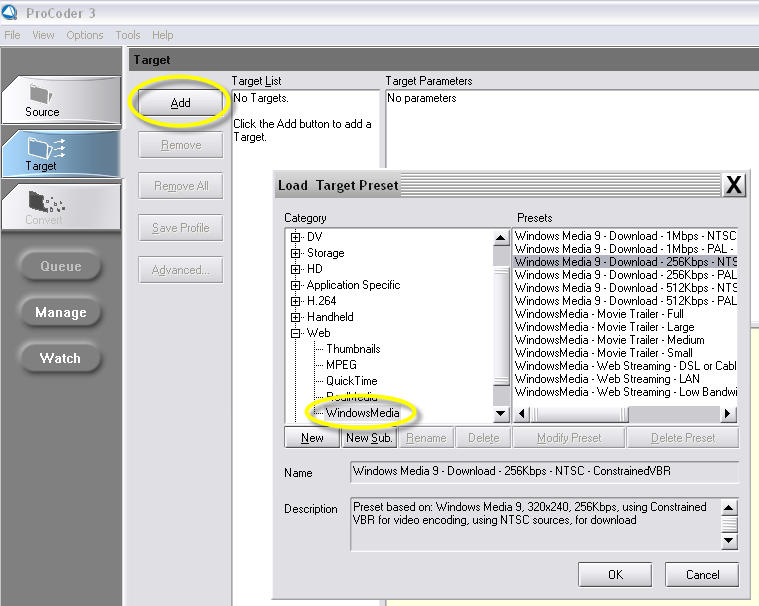
The Load Target Preset window has two columns. On the left side are categories of transcoding presets, and on the right are the actual presets. First select a category on the left and then select one of the available presets on the right. A category (like Web), can have several sub-categories (like QuickTime, Windows Media, etc.). ProCoder 3 ships with over a hundred presets to help you get started. You can modify these presets and create your own. You can also create new categories for storing your own presets.
1. In the Load Target Preset window, click on a desired category on the left side.
2. Click on the (+) next to a category (if needed) to display its sub-categories.
3. The right side displays all the available presets for that category.
4. When you have selected a preset, you will see complete details of the format settings in the description pane located in the bottom of the Load Target Preset window.
5. You can “shift-select” or “ctrl-select” to grab multiple presets within a single category
6. Click OK to add this preset to your Target window.
After you have added a target format to the Target List, you will see the specific encoding parameters on the right hand side of the screen. You can modify every parameter, including output file naming, encoding parameters, audio processing, etc. After you have modified encoding parameters, you can save them to disk to be reused in the future by clicking on the Save Profile button. Below the save profile button, there is also an Advanced button. This button which allows you to access advanced codec encoding parameters, as well as the ability to add video and audio filtering to your encoding.